Tutorial: Adding users to Teamspaces
In this tutorial, you’ll learn how to add a Team member to a Teamspace using the MASV API.
A Teamspace organizes a subset of Team members into a group in order to control access to specific content and functionality. It also provides an organizational tool to track activity for specific projects, clients, or departments.
What you'll learn
This tutorial includes the following steps:
- Get a list of Team members
- Get a list of Teamspaces
- Add a user to the Team
- Create a new Teamspace
- Add a user to the Teamspace
Before you begin
To follow this tutorial, you'll need these things:
- A MASV account with the Owner or Admin role: You can sign up here.
- You'll need a MASV API key.
Step 1: Get a list of Team members
Using the base URI https://api.massive.app, you can call the following endpoint to provide a list of all users who belong to a particular MASV Team.
| Method | Route |
|---|---|
GET |
/v1/teams/{team_id}/members |
Headers
| Name | Type | Required | Description |
|---|---|---|---|
X-API-KEY |
string | Yes | API key |
URL Parameters
| Name | Type | Required | Description |
|---|---|---|---|
team_id |
string | Yes | ID of the Team |
Locate and copy the team_id from the MASV Web App URL. For detailed instructions, see How can I find my Team ID and Portal ID.
Response
200 Success
In this sample response, there is a single user (member), [email protected], enrolled in the Team.
[
  {
    "approved": true,
    "email": "[email protected]",
    "id": "string",
    "invitation_accepted": "2026-02-05T17:32:10.870Z",
    "invitation_kind": "string",
    "invitation_sent": "2026-02-05T17:32:10.870Z",
    "invited": "2026-02-05T17:32:10.870Z",
    "invited_by": "string",
    "mfa_factors": 0,
    "name": "string",
    "policy_key": "member",
    "policy_name": "string",
    "team_id": "string",
    "teamspaces": [
      {
        "id": "string",
        "name": "string"
      }
    ],
    "user_id": "string"
  }
]
Default error
{
  "code": 0,
  "errors": [
    {
      "code": "string",
      "msg": "string",
      "type": "validation_failed",
      "additionalProp1": {}
    }
  ],
  "message": "string"
}
Sample error response
{
    "code": 401,
    "message": "invalid auth token"
}
Step 2: Get a list of Teamspaces
Authorized users can list all the existing Teamspaces for any Team that they belong to (subject to access policy).
| Method | Route |
|---|---|
GET |
/v1.1/teams/{team_id}/spaces |
Headers
| Name | Type | Required | Description |
|---|---|---|---|
X-API-KEY |
string | Yes | API key |
URL parameters
| Name | Type | Required | Description |
|---|---|---|---|
team_id |
string | Yes | ID of the Team that owns the Teamspace |
Query parameters
| Name | Type | Required | Description |
|---|---|---|---|
page |
integer | No | The page number to access. Default Value: 0 |
limit |
integer | No | The maximum number of records to fetch at a time (50 max). Default Value: 50 |
Response
200 Success
{
  "metadata": {
    "per_page": 0,
    "total": 0
  },
  "records": [
    {
      "id": "string",
      "name": "string"
    }
  ]
}
Default error
{
  "code": 0,
  "errors": [
    {
      "code": "string",
      "msg": "string",
      "type": "validation_failed",
      "additionalProp1": {}
    }
  ],
  "message": "string"
}
Step 3: Add a user to the Team
To invite a user to the Team, sign in to the MASV Web App. You must be a Team Owner or Admin. For each new user, you’ll assign a role to determine their permissions. For this tutorial, select Member as the role.
- From the sidebar on the left, select Features & Settings, and then User Management.
- On the User Management page, select + Add Users in the upper right corner.
- In the Add Users window, add the email address for a user that you want to invite.
- From the Role drop-down menu, select Member.
- Select Add. You can repeat the steps to invite additional users.
- After you have added all the users you want, select Send.
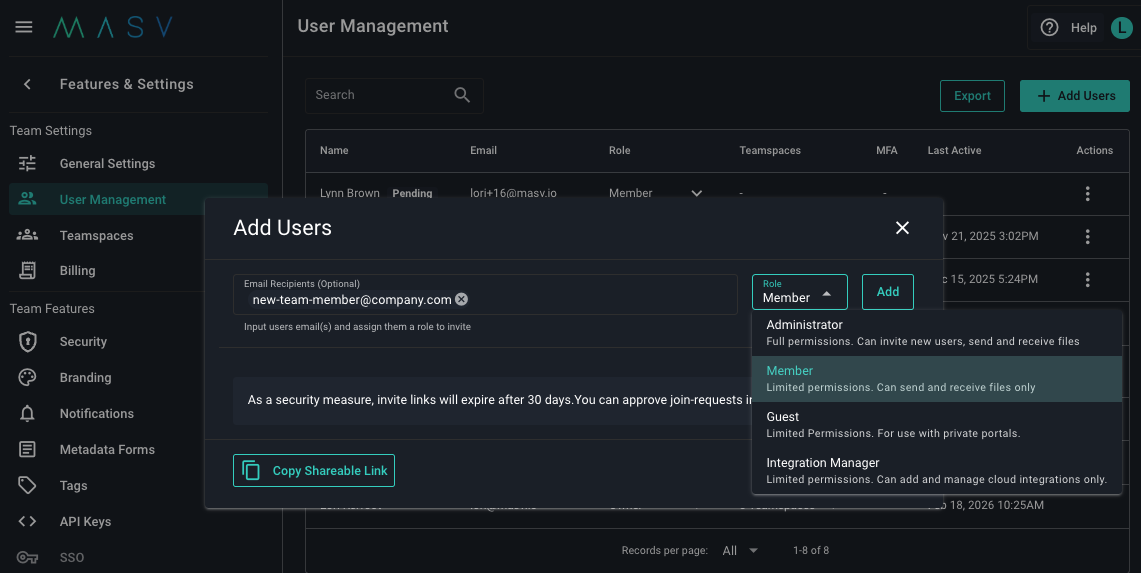
The system sends an email invitation to each invited user. Invited users are listed as Pending in the MASV Web App until they accept the email invitation.
Step 4: Create a new Teamspace
The MASV API allows authorized users to create Teamspaces under any Team to which they belong. For this tutorial, we'll create the Teamspace first, then add users, but you have the option to provide membership_ids for existing Team members when you create the new Teamspace.
| Method | Route |
|---|---|
POST |
/v1/teams/{team_id}/spaces |
Headers
| Name | Type | Required | Description |
|---|---|---|---|
X-API-KEY |
string | Yes | API key |
URL parameters
| Name | Type | Required | Description |
|---|---|---|---|
team_id |
string | Yes | ID of the Team. |
Request body schema
| Name | Type | Required | Description |
|---|---|---|---|
membership_ids |
Array of strings | No | Membership ID(s) of Team members to add to the Teamspace. |
name |
String | Yes | Name of the Teamspace to create. |
Body example
The example below includes the optional membership_ids, but it is not required to create the Teamspace.
{
  "membership_ids": [
    "string"
  ],
  "name": "string"
}
Response
201 Created
{
  "id": "string",
  "members": [
    {
      "membership_id": "string",
      "name": "string",
      "user_id": "string"
    }
  ],
  "name": "string"
}
Default error
{
  "code": 0,
  "errors": [
    {
      "code": "string",
      "msg": "string",
      "type": "validation_failed",
      "additionalProp1": {}
    }
  ],
  "message": "string"
}
Sample error response
{
    "code": 404,
    "errors": [
    {
        "code": "not_found",
        "msg": "membership not found",
        "type": "validation_error"
    }
    ],
    "message": "failed to add teamspace member(s)"
}
Step 5: Add a user to the new Teamspace
While Team Owners and Admins already have read and write access to all Teamspaces in their Team, other members of the Team need to be added. A Team member can be added to multiple Teamspaces.
| Method | Route |
|---|---|
POST |
/v1/spaces/{space_id}/members |
Headers
| Name | Type | Required | Description |
|---|---|---|---|
X-API-KEY |
string | Yes | API key |
URL Parameters
| Name | Type | Required | Description |
|---|---|---|---|
space_id |
string | Yes | ID of the Teamspace |
Request Body Schema
| Name | Type | Required | Description |
|---|---|---|---|
membership_ids |
Array of strings | Yes | Team membership IDs to add to Teamspace |
Use:
- In the path, use the Teamspace ID returned from Step 4.
- The list of
membership_idsto be added to the Teamspace in the body.
Body example
{
  "membership_ids": [
    "string"
  ]
}
Repeat Step 1 (Get a list of Team members) to determine the newly added team member’s identifier. Here's a sample output:
Example:
{
    "approved": true,
    "email": "[email protected]",
    "id": "01KGJN265PMVBG59EK6DXVHZQ5",
    "invitation_accepted": "2026-02-03T21:22:57.184Z",
    "invitation_kind": "email",
    "invitation_sent": "2026-02-03T21:03:17.678Z",
    "invited": "2026-02-03T21:03:17.678Z",
    "invited_by": "01KESZAJ7G9GCTD7DRK29EQJC1",
    "last_active_at": "2026-02-03T21:23:13.303Z",
    "name": "Jon New",
    "policy_key": "member",
    "policy_name": "Member",
    "team_id": "01KESZAJ7NNWAQ9TAW3R4Q27CB",
    "teamspaces": [],
    "user_id": "01KGJN265HXMS0D1NWJFC5TS7J"
}
In the sample response above, newly added member [email protected]. has:
user_id": "01KGJN265HXMS0D1NWJFC5TS7J"
Response
201 Created
[
  {
    "approved": true,
    "email": "[email protected]",
    "id": "string",
    "invitation_accepted": "2026-02-05T18:37:42.453Z",
    "invitation_kind": "string",
    "invitation_sent": "2026-02-05T18:37:42.453Z",
    "invited": "2026-02-05T18:37:42.454Z",
    "invited_by": "string",
    "mfa_factors": 0,
    "name": "string",
    "policy_key": "member",
    "policy_name": "string",
    "team_id": "string",
    "teamspaces": [
      {
        "id": "string",
        "name": "string"
      }
    ],
    "user_id": "string"
  }
]
Default error
{
  "code": 0,
  "errors": [
    {
      "code": "string",
      "msg": "string",
      "type": "validation_failed",
      "additionalProp1": {}
    }
  ],
  "message": "string"
}
Sample error response
{
  "code": 404,
  "errors": [
  {
    "code": "not_found",
    "msg": "membership not found",
    "type": "validation_error"
  }
  ],
  "message": "failed to add teamspace member(s)"
}
Summary
Congratulations! You’ve completed the tutorial. You’ve learned how to use the MASV API to get a list of MASV Team members using your Team ID, as well as how to get a list of Teamspaces. You've also learned how to add users to a Team and how to create a Teamspace and add users to the new Teamspace. For information about using Teamspaces in the MASV Web App, see How to control access with MASV Teamspaces.